Installation
The guide to quickly installing and playing Steel Dominion.
Choosing a Launcher
Steel Dominion provides two main ways to download and join the game:
-
Using Steel Launcher, a launcher provided by the Steel Dominion Team
- Steel Launcher allows for easy access to Steel Dominion, by preinstalling the pack file on the launcher and allows for free access to Steel Dominion's servers.
-
Using Prism Launcher, a launcher distributed by a third-party
- Prism Launcher is a general launcher for Minecraft that allows for installing third-party packs, it requires a Minecraft account to use.
Steel Launcher Notice
With the Steel Launcher installer you may get a notice that the app cannot be opened, if you get this warning, click "Run Anyways". You may need to click "more info" to see this option. This warning is entirely harmless and only shows because the app is unsigned. Signing would cost us up to US$304/year.
Abstract
Use Steel Launcher if:
- You want to play on Steel Dominion for free without a Minecraft account.
- OR you want a simple way to install and get into Steel Dominion.
Use Prism Launcher if:
- You have a Minecraft account and want a trusted mainstream launcher option.
Steel Launcher
Free to Play
Playing Steel Dominion through the Steel Launcher is completely free, you will be prompted to choose a username to play as in the launcher.
Optional Minecraft Account
Have a Minecraft Account? You can add it on Steel Launcher.
Downloading the Steel Launcher Installer
First you will need to download the Steel Launcher installer, the latest version can be found here:
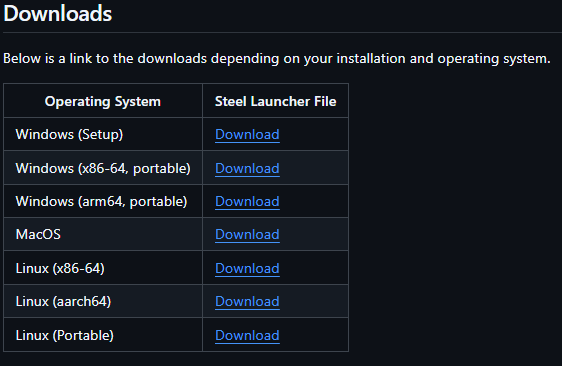
Scroll down to the downloads table and select the installer for your operating system.
Windows Installation Instructions
Once the installer is downloaded, on windows you can run the installer and follow the steps to install it on your computer.
Steel Launcher Unsigned Warning
Once again, if you get a warning that the app cannot be opened, click "Run Anways". You may need to click "more info" to see this option. This warning is entirely harmless and only shows because the app is unsigned. Signing would cost us up to US$304/year.
Steel Launcher is fully open-source, its source code can be reviewed and scrutinized here. Administrator access is never asked or granted by the installer.
Don't trust Steel Launcher? Click here to go to the Prism Launcher instructions (You will need a Minecraft Account!)
Once finished, you should see the following completion screen from the installer:
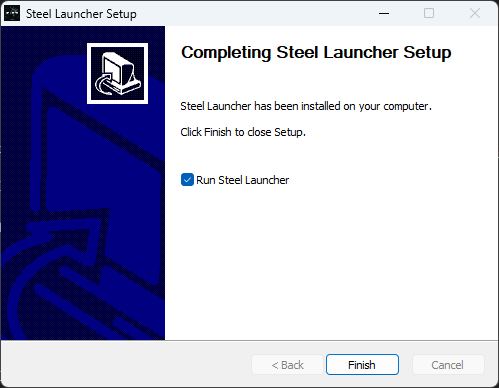
After opening the launcher, the last step is to select "Add Instance" and "Next".
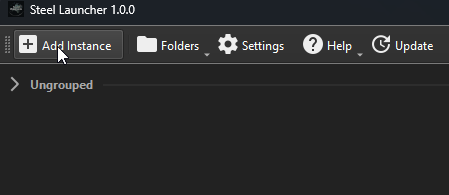
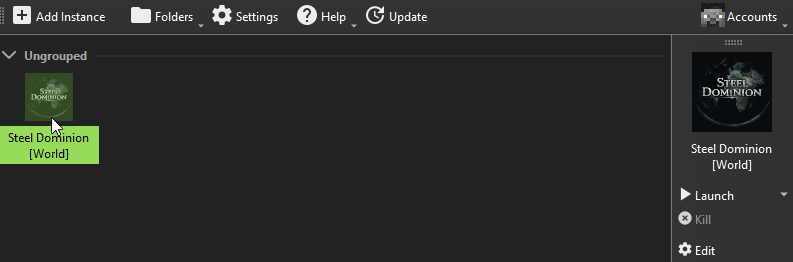
The last step is to launch Steel Dominion by double-clicking the icon or by pressing "Launch" on the right-hand menu.
Success
Steel Launcher will now download the files of Steel Dominion and launch the game. With this you have successfully installed Steel Launcher and the Steel Dominion game files.
From now on, you can launch Steel Dominion through the Steel Launcher on your computer. Either through the start menu or through the icon on your desktop.
MacOS Installation Instructions
- wip
Prism Launcher
Minecraft Account Required
For the alternative method using Prism Launcher, you must have a Microsoft Account with a Minecraft Account associated with it.
Downloading the Prism Launcher Installer
First you will need to download the Prism Launcher installer, the latest version can be found here:
https://prismlauncher.org/download/windows/
Select your operating system and computer architecture (amd64 or x86_64)
General Installation Instructions
Once the installer is downloaded, you can run the installer and follow the steps to install it on your computer.
After first startup of the launcher, it will ask you to sign-in with a Microsoft account. This is required by Prism Launcher.
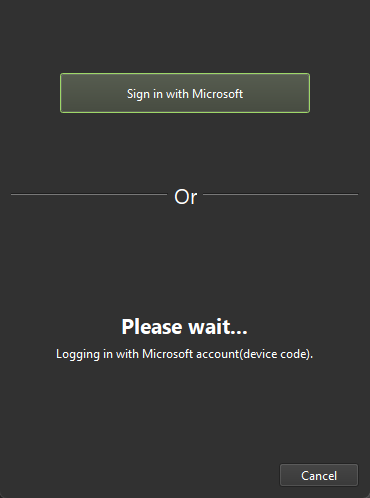
Once signed in, continue through the setup wizard.
Adding the Steel Dominion Instance
Once everything has been set up, and you are logged into a Microsoft account, add an instance on the top left of the launcher.
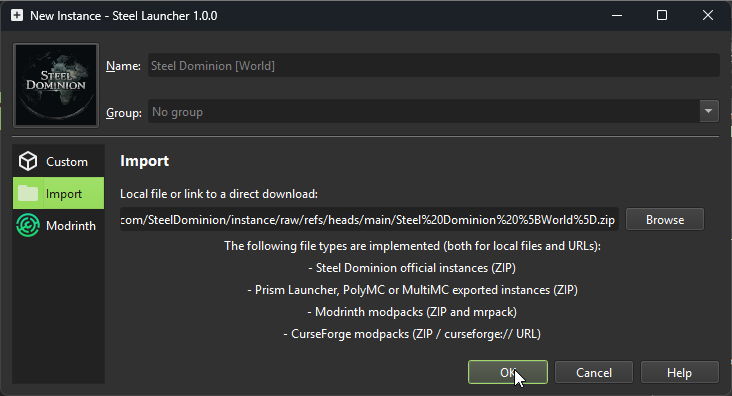
Select "Import" and paste in the following link to the pack file:
https://pack.steeldominion.net/Steel%20Dominion%20%5BWorld%5D.zip
The screen should now look similar to this:
Press next, and now Steel Dominion has been installed on Prism Launcher.
The last step is to launch Steel Dominion by double-clicking the icon or by pressing "Launch" on the right-hand menu.
Success
Prism Launcher will now download the files of Steel Dominion and launch the game. With this you have successfully installed Prism Launcher and the Steel Dominion game files.
From now on, you can launch Steel Dominion through the Prism Launcher on your computer. Either through the start menu or through the icon on your desktop.